Guides on this page
1 Switching on Flexi and putting people on it ▼
Flexi lets people bank time above or below their expected hours and settle it at the end of each Flexi period. You switch it on once, then set it up on the schedules that use it.
Step 1: Switch Flexi Time on
Go to Settings, Syncro, then Flexi, and make sure Use Flexi Time is on.
If Flexi Time is switched off, nothing about Flexi appears anywhere and no Flexi figures are worked out. Anything already recorded is kept and picks up again when you switch it back on.
Step 2: Set it up on a schedule
- Go to Work Patterns and open the schedule, or create a new one. See Creating a schedule.
- Tick This schedule uses Flexi. The Flexi settings open.
- Set the Flexi period, the credit and debit limits, and when the period settles. Save the schedule.
Step 3: Put people on the schedule
Everyone assigned to that schedule is on Flexi. See Putting people on a schedule.
2 Checking Flexi balances ▼
Flexi Balances shows everyone on Flexi, their current period, their balance now and what it is heading for at the end of the period.
Step 1: Open Flexi Balances
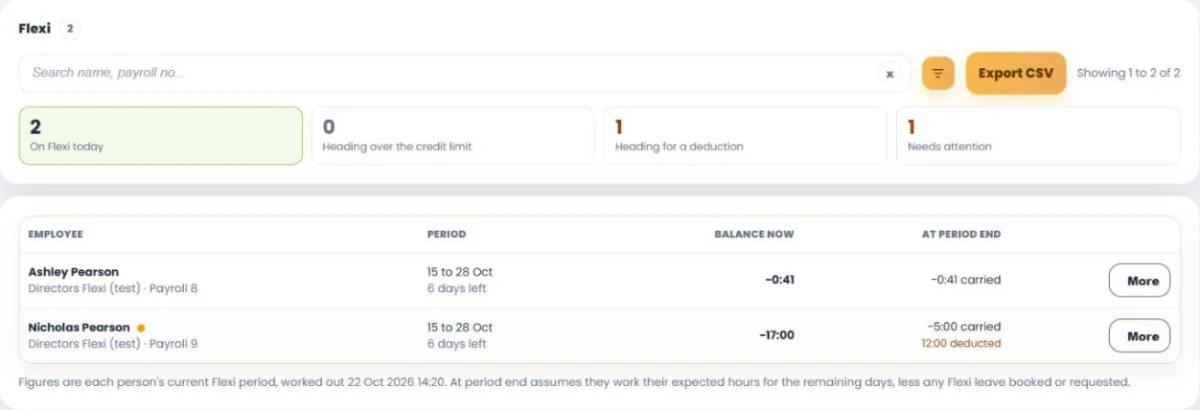
Click Flexi Balances on the left-hand menu. The figures across the top show how many people are on Flexi today, heading over the credit limit, heading for a deduction, and needing attention.
Step 2: Read the list
- Period: the current Flexi period and how many days are left.
- Balance now: hours worked so far, above or below the Flexi target.
- At period end: what will be carried forward, and any deduction, if they work their expected hours for the rest of the period.
Search by name or payroll number, use the filter button to narrow by schedule, site, department or team, or click Export CSV.
Step 3: See the detail
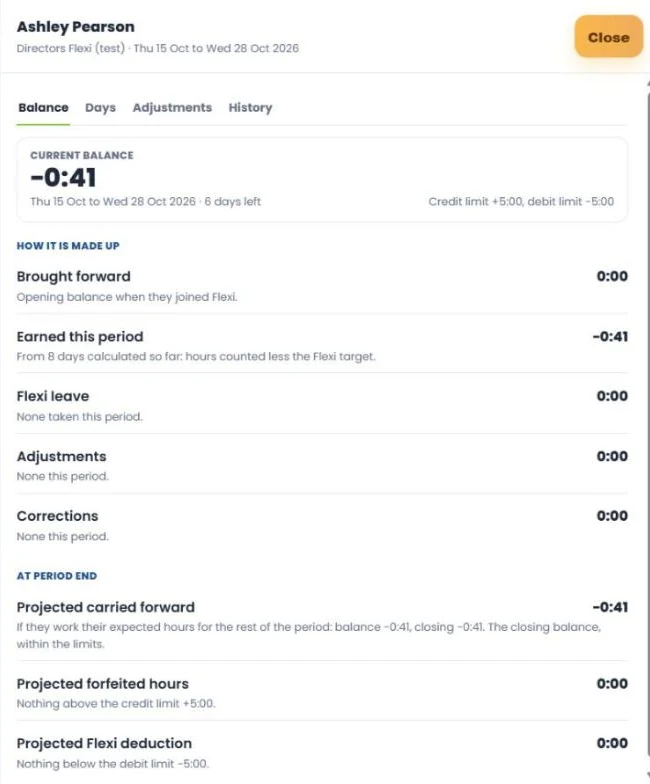
Click More next to a person. The Balance tab shows how the figure is made up: brought forward, earned this period, Flexi leave, adjustments and corrections. It also shows the projected carry forward, any hours above the credit limit that would be forfeited, and any deduction below the debit limit. The Days and History tabs show the day-by-day figures and past periods.
3 Adding a Flexi adjustment ▼
An adjustment adds time to, or takes time from, a person’s Flexi balance in the current period, for example to credit time agreed with a manager.
Step 1: Open the person
In Flexi Balances, click More next to the person, then the Adjustments tab.
Step 2: Add the adjustment
- Choose the Type: Credit (adds to the balance) or Deduction (takes from the balance).
- Enter the Amount in hours and minutes, for example 1:30.
- Enter a Reason, then click Add adjustment.
An adjustment moves the Flexi balance only, never pay, and it cannot be edited or removed. If you make a mistake, add an opposite adjustment to correct it.
4 Settling a Flexi period ▼
At the end of each Flexi period the balance is settled: hours within the limits carry forward, hours above the credit limit are forfeited, and hours below the debit limit become a deduction.
Step 1: Check what is waiting
Click Flexi Settlement on the left-hand menu. It shows periods waiting to settle, any waiting with a question open, forfeited hours to decide, and periods settled in the last 60 days. The figures shown are what settling now would give.
Step 2: Settle
Periods settle on their own two days after they end. To settle one straight away, use Settle now.
Step 3: Deal with forfeited hours
Hours above the credit limit are forfeited at settlement, but you can still pay them. Open More on the person and use the History tab. The pay goes on the date of the change, never into a payroll you have already exported.
Flexi deductions reach your payroll file through the Flexi deduction rate. Make sure it is ticked in your export profile. See Setting up an export for your payroll system.