Guides on this page
1 Creating a shift ▼
A shift is one working day: its start and end times, breaks, overtime and rounding. Create your shifts first, because a schedule is built out of shifts.
Where to find it: Time and Attendance, then Work Patterns. You need full Work Patterns access.
Before you start
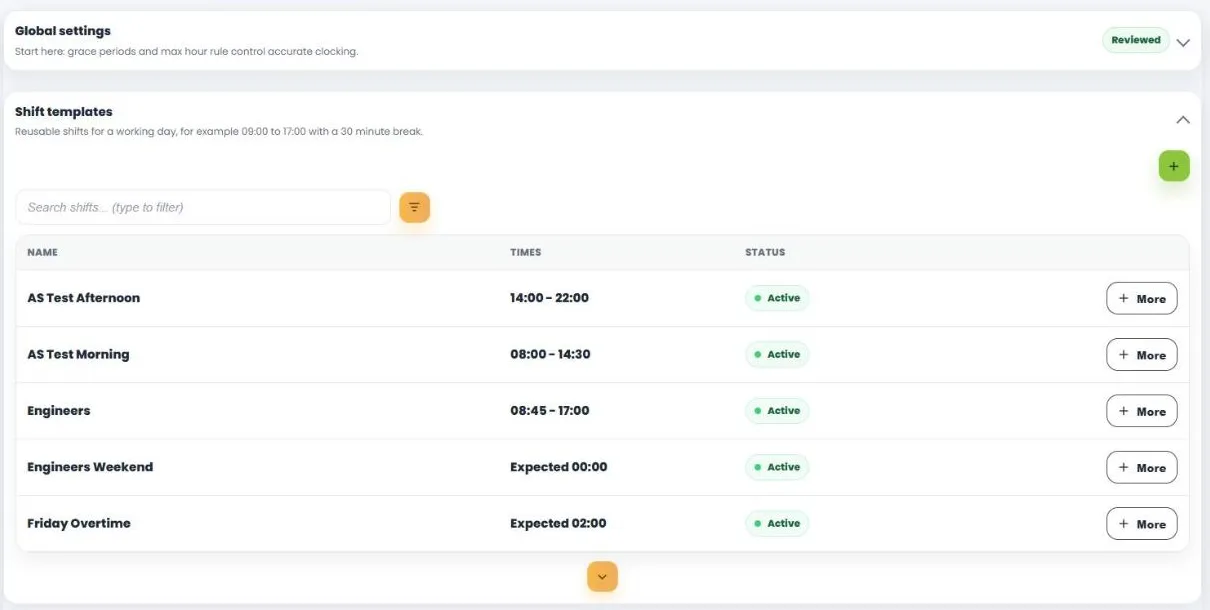
Open Work Patterns and check that Global settings, at the top, has the rate names you will need, such as Basic, Overtime 1.5 and Double Time. Every rate drop-down in a shift is empty until a name exists here. To add one, click the plus, type the name and save.
Step 1: Start a new shift
- In Shift templates, click the green +.
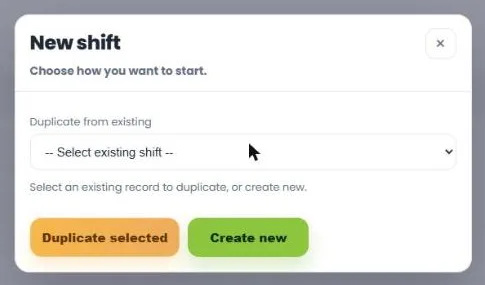
- Click Create new for a blank shift, or choose a similar shift under Duplicate from existing and click Duplicate selected to start from a copy.
- The shift opens in a panel on the right. Each section below is a heading you can open and close. More on any existing shift opens the same panel.
Step 2: Basic info
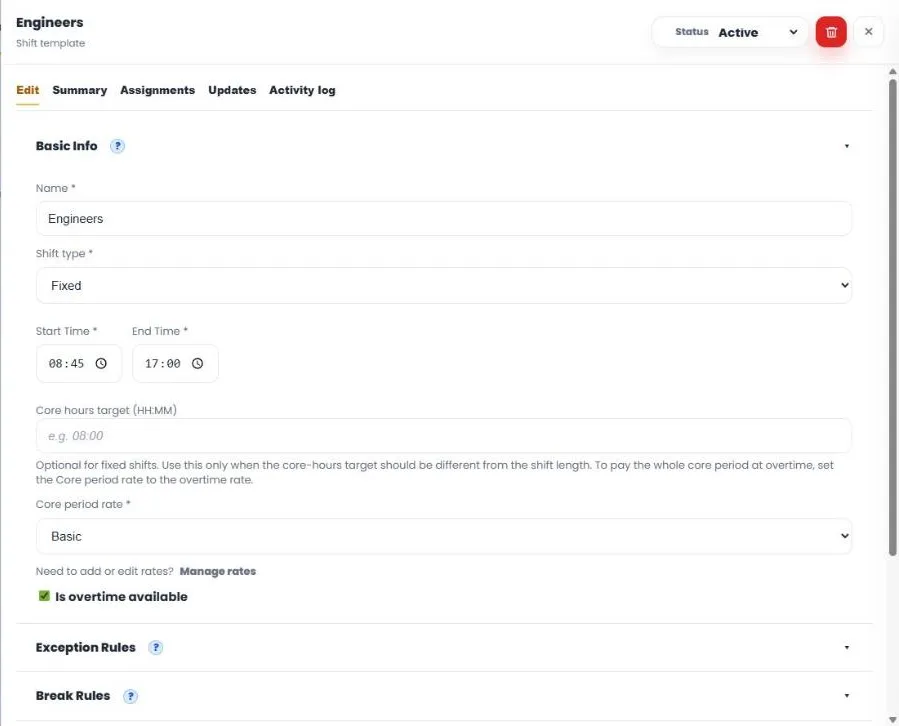
- Name: something your team will recognise, for example Office 9 to 5.30. Each name must be unique.
- Shift type: Fixed for set start and end times. Open when there are no set times and the day is measured against an expected length. Flexi also appears if your company uses Syncro Flexi.
- Fixed shifts: enter the Start Time and End Time. If the end is earlier than the start, the shift is treated as a night shift that crosses midnight.
- Open shifts: enter the Core hours target, the expected paid length of the day.
- Core period rate: the rate normal hours are paid at, usually Basic.
- On a Fixed shift, leave Core hours target blank unless paid hours should be measured against a different target from the shift length. If it is filled in, it overrides the shift length.
- Is overtime available: tick it if people can earn overtime on this shift. Leave it unticked to pay nothing beyond the normal hours.
Step 3: Exception rules
The three tick boxes decide what Clocking Hub flags: late, left early and absent. Most companies leave all three on.
Step 4: Break rules
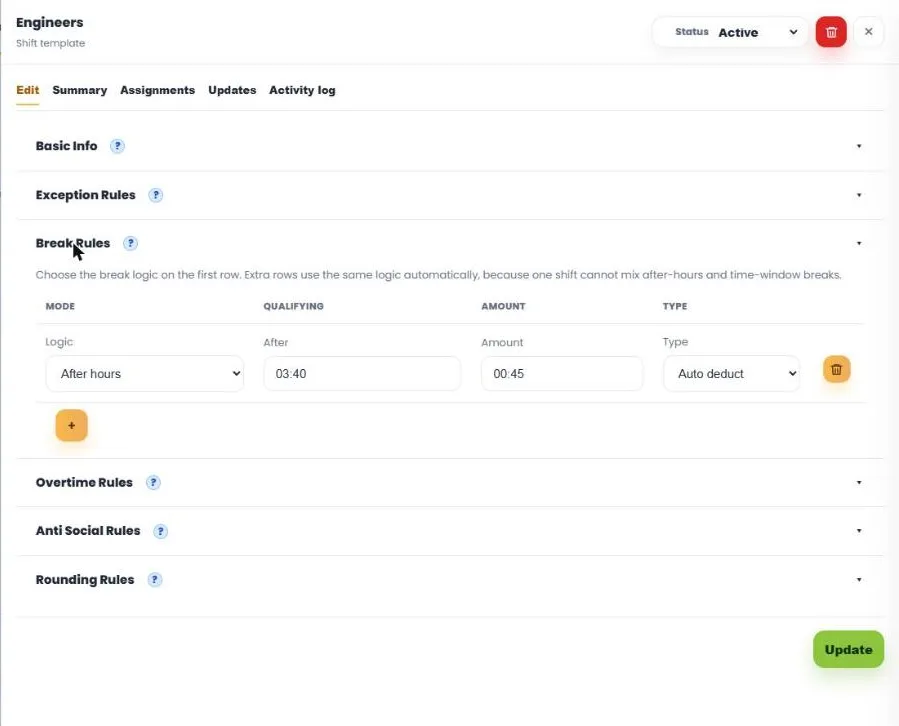
Add a row for each break.
- After hours: After 04:00, Amount 00:30 takes a 30 minute break once someone has worked 4 hours.
- Time window: From 12:00, To 14:00, Amount 00:30 means a 30 minute break taken between 12 and 2.
- Type: Auto deduct takes the break off paid time whether or not they clock out for it. Paid records the break but does not deduct it.
- A shift uses one logic for all its breaks, and the first row sets it.
Step 5: Overtime rules
This section only appears when Is overtime available is ticked.
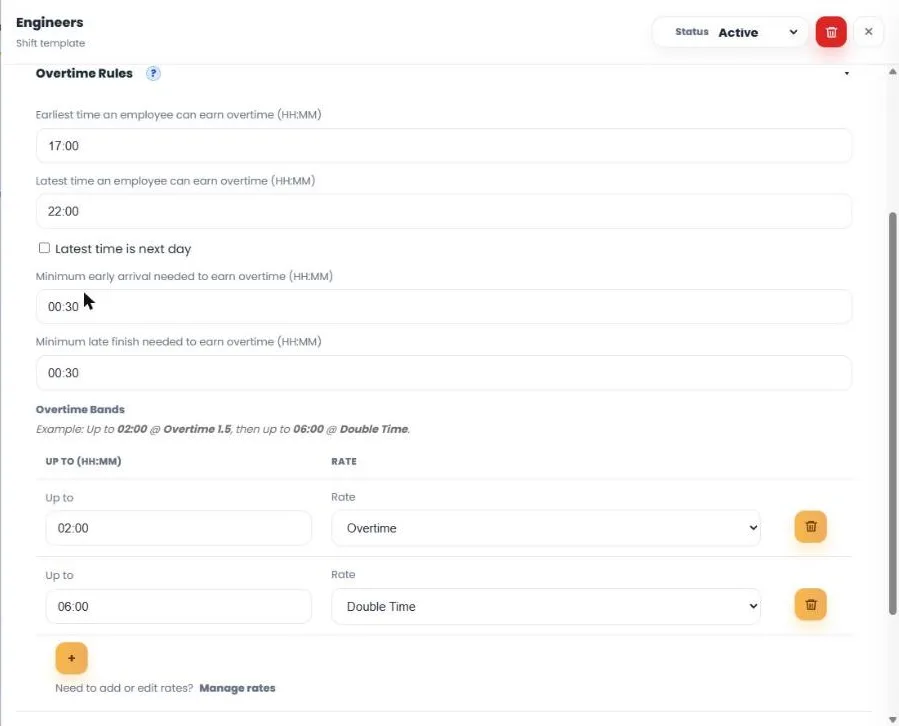
- Earliest and Latest time an employee can earn overtime set the window. Time outside it is never overtime. Tick Latest time is next day if the window runs past midnight.
- Minimum early arrival and Minimum late finish: with 00:30, a few minutes early or late does not count, but once someone is over 30 minutes the whole period is paid.
- Overtime bands are cumulative steps, for example up to 02:00 at Overtime 1.5, then up to 06:00 at Double Time.
Step 6: Anti-social rules
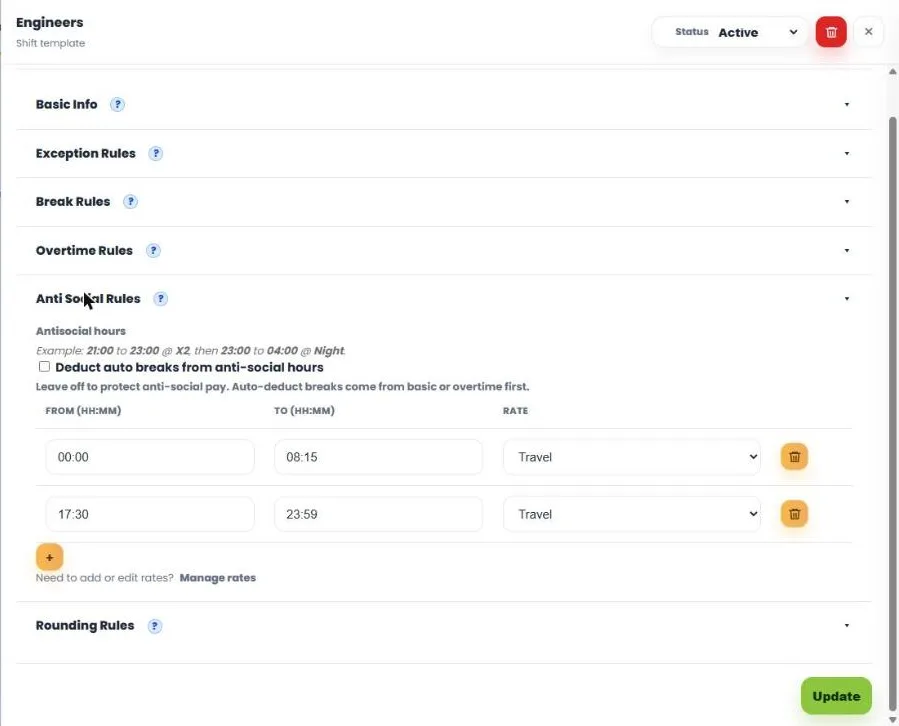
Only use these if a time of day pays a different rate regardless of hours worked, for example 22:00 to 06:00 at a Night rate. Leave Deduct auto breaks from anti-social hours unticked to protect anti-social pay: breaks then come off basic or overtime first.
Step 7: Rounding rules
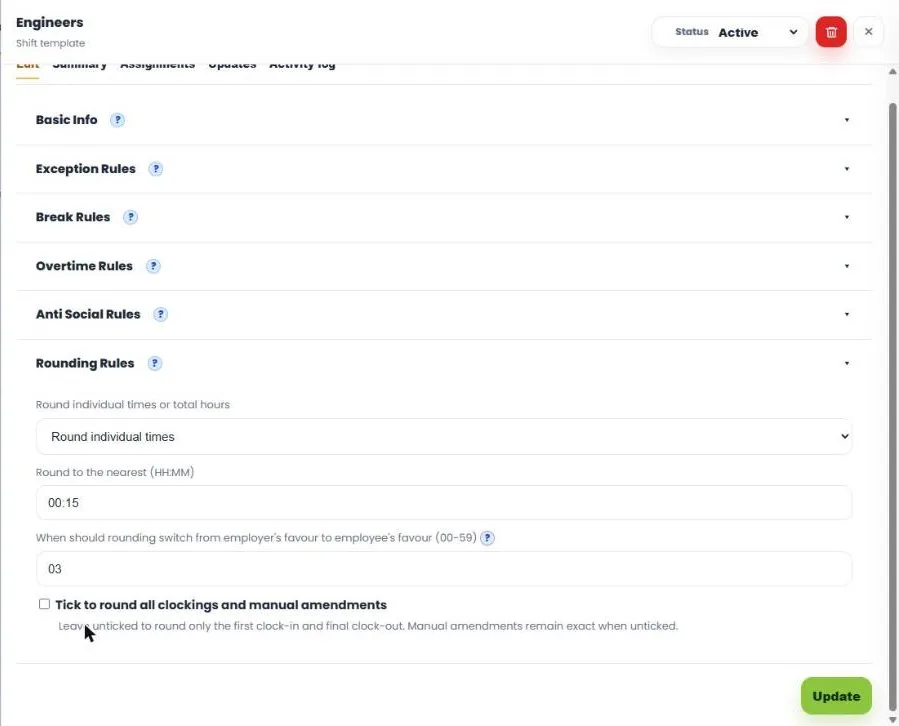
Leave this as none unless you round clockings. If you do, choose Round individual times, set Round to the nearest (for example 00:15) and the switch point, which decides when rounding moves from the employer’s favour to the employee’s. Leave Tick to round all clockings and manual amendments unticked to round only the first clock-in and final clock-out; manual amendments then stay exact.
Step 8: Save and check
- Click Update.
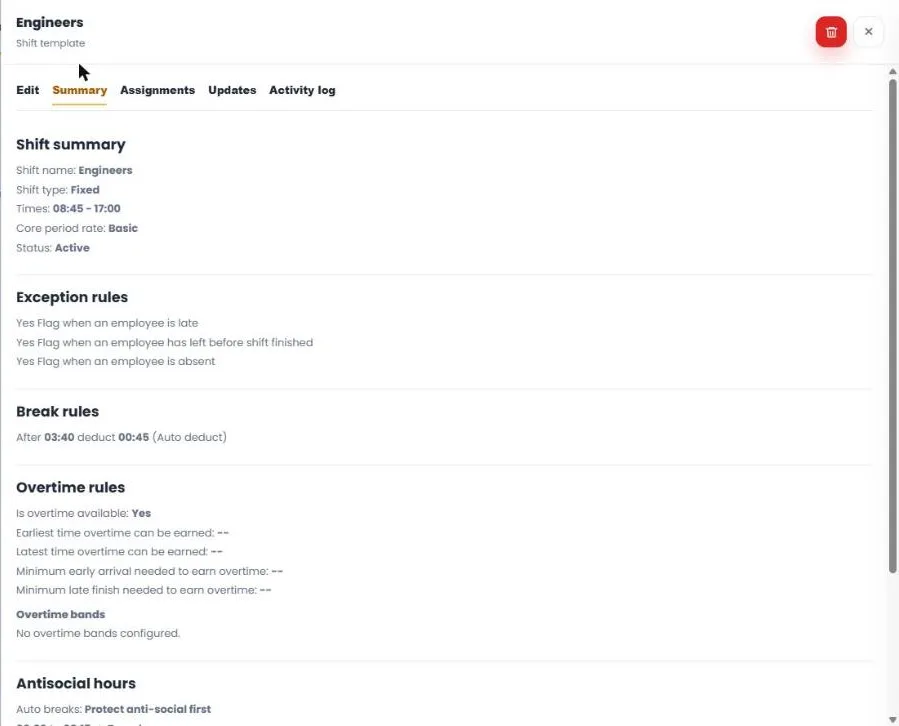
- Open the Summary tab and read it back. It describes every rule in plain words. If it does not describe the day you want, go back and change it.
Worked example, a standard office day: Fixed, 09:00 to 17:30, Core period rate Basic, one break row After hours 04:00, Amount 00:30, Auto deduct, overtime unticked, then Update.
2 Creating a schedule ▼
A schedule is the repeating pattern that says which shift applies on which day, and which days are days off. Create your shifts first.
Step 1: Start a new schedule
- In the Schedules section of Work Patterns, click the green +, then Create new, or duplicate an existing schedule.
- The schedule opens in the same kind of panel, with Edit, Summary, Assignments, Updates and Activity log tabs across the top.
Step 2: Basic info
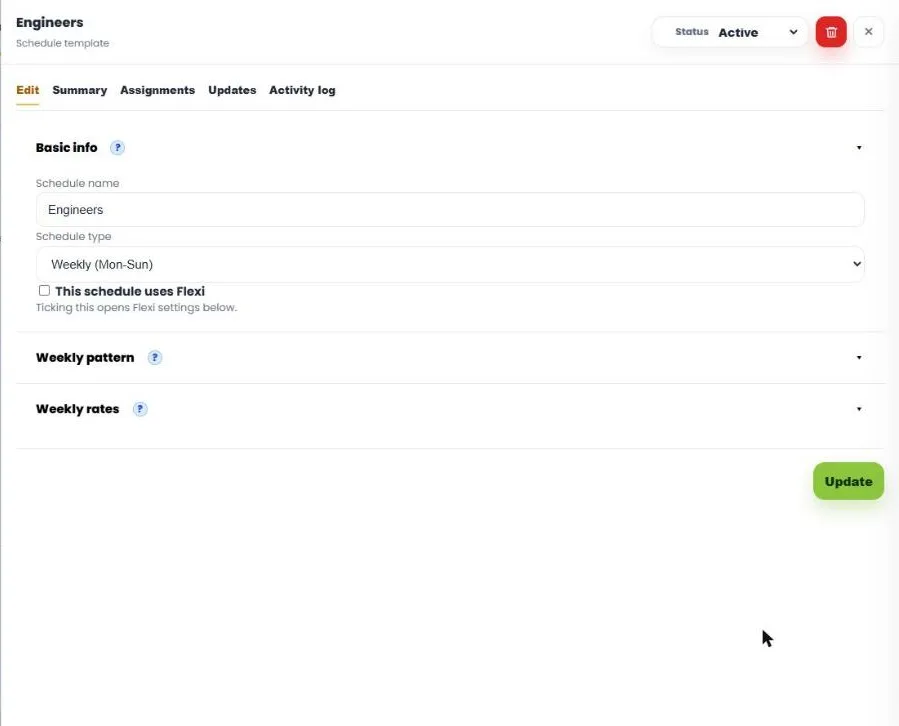
- Schedule name: unique, for example Office Mon-Fri.
- Schedule type:
- Weekly: the same week every week.
- Rotating weeks: 2 to 12 different weeks that cycle, Week A, Week B and so on.
- Cycle schedule: a day-by-day pattern that repeats regardless of the weekday, for example 4 on 4 off.
- Auto select: each day can be one of several shifts, and the first clock-in picks the nearest one.
Step 3: Weekly pattern
- Weekly: choose the shift for each day, or pick one shift in Apply shift to whole week and press the tick to fill every day. Tick Day off on the days people are not expected in.
- Rotating weeks: set the Number of weeks, then fill in each week’s tab.
- Cycle schedule: set the Cycle length (days), then fill in Day 1 to the last day. The cycle starts from the date each person is assigned.
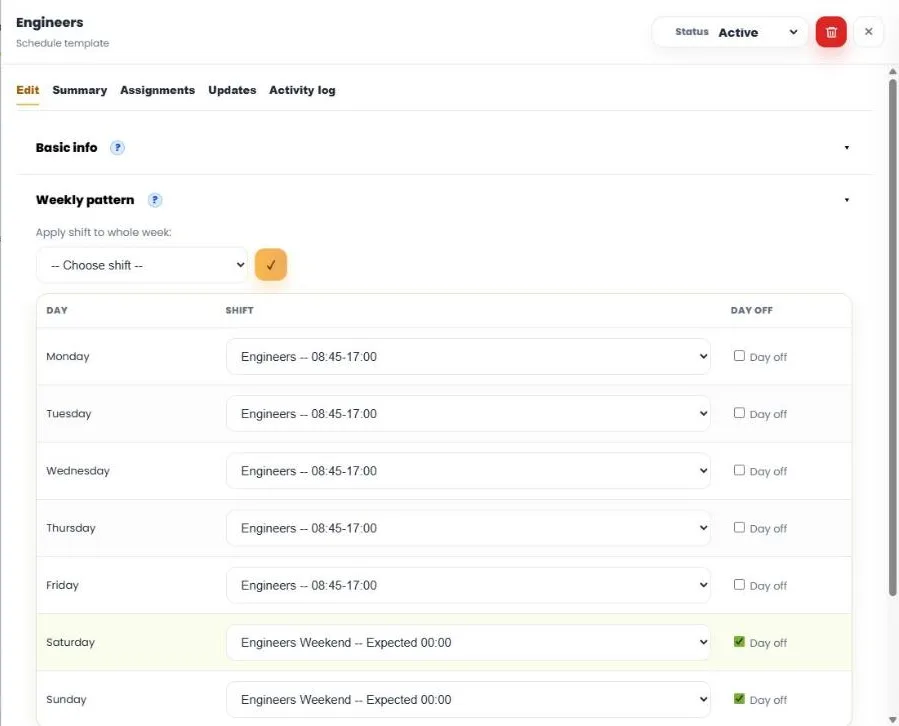
Day off and the shift are separate. Day off means not expected in, so no late or absent flag. Leaving a shift on a day off means that if they do work, the hours are paid using that shift. A day off with No shift records the hours but can never pay them, so if weekend work should be paid, leave a shift on Saturday and Sunday and keep Day off ticked.
Step 4: Weekly rates
Leave this as None unless your overtime is set by the week, for example overtime after 40 hours. If it is, see Setting up weekly rates.
Step 5: Save and check
- Set Status to Active, then click Update.
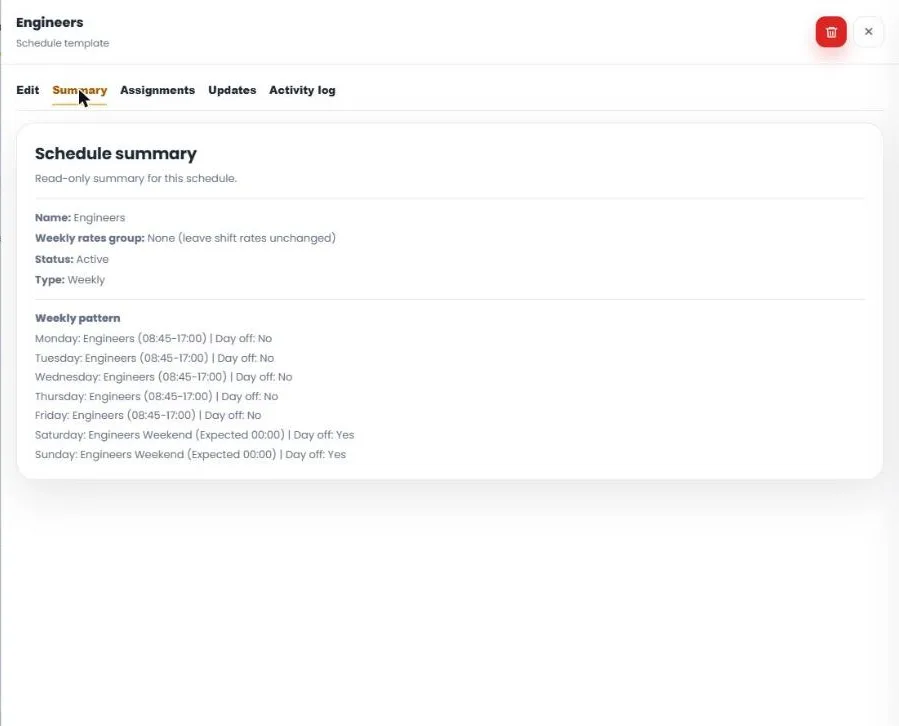
- Open the Summary tab and check every day shows the shift and day off setting you expect.
3 Putting people on a schedule ▼
Once a schedule is saved, assign the people who work it. A schedule does nothing until someone is on it.
Step 1: Open Assignments
Open the schedule and go to the Assignments tab.
Step 2: Choose the start date
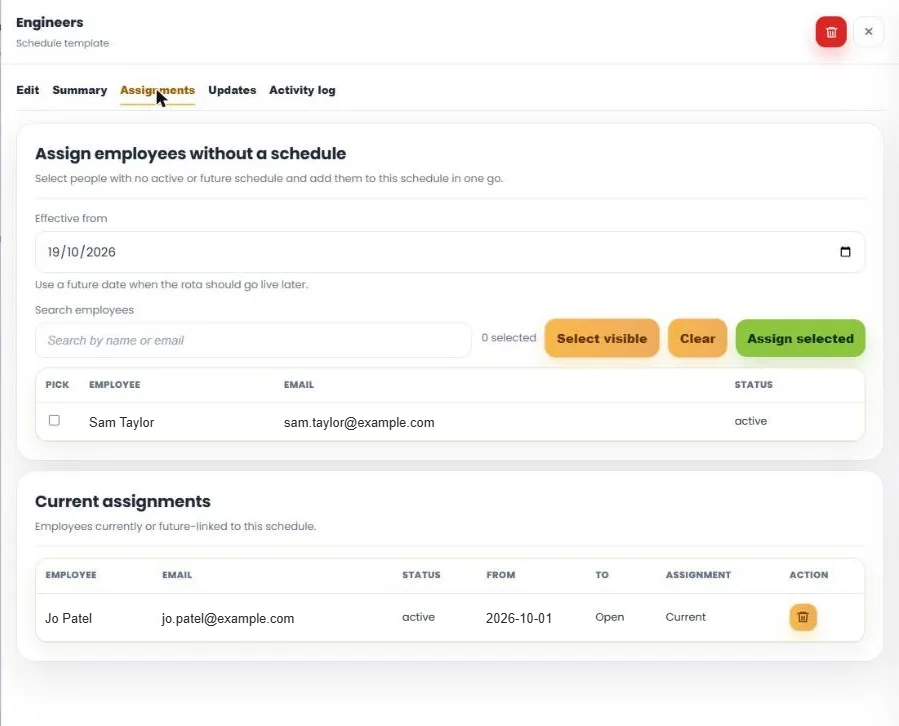
- Under Assign employees without a schedule, set Effective from. It can be today or a future date, but not a date in the past.
- For a rotating schedule, also set Start rotation on: the week that applies on that date.
Getting Start rotation on wrong is the usual reason a rotating pattern runs a week out.
Step 3: Pick the people
- Tick the people, or use Select visible, and click Assign selected.
- If someone is missing from the list, they are already on another schedule. Open that schedule’s Assignments tab, remove them with the bin, then come back and assign them here.
- Current assignments shows everyone on the schedule and the date it applies from.
Things to know
- A shift cannot be deleted while a schedule uses it. Set it to Inactive instead.
- Changing a shift changes every schedule and person using it from the next calculation. Days already calculated keep their result until they are recalculated in Clocking Hub.
- Holiday cannot be approved for someone with no schedule covering the dates, so assign the schedule before people start booking.
- To backdate a schedule change, use Clocking Hub, Tools, Change working pattern from date, rather than this screen.
4 Setting up weekly rates ▼
Weekly rates adjust the rate split shown in reports and payroll review across a weekly period, for example moving hours into overtime once a weekly target is reached. You build a weekly rates group, then assign it to a schedule.
Weekly rates do not replace your daily shift rules. Daily shift times, breaks, overtime rules and clocking records still run first. Weekly rates only adjust the weekly split in reports for schedules that use a weekly rates group. A schedule set to None keeps its shift-level rates unchanged.
PDF Download the full weekly rates guide →
Before you start
- Confirm the payroll or report week, for example Monday to Sunday.
- Decide which days count towards the weekly threshold.
- Decide the base-hours target, for example 40:00 Basic.
- Decide which rates apply after the base target is reached, such as Overtime or Double Time.
- Decide which absence groups, if any, should reduce the base-hours target.
Step 1: Open weekly rates on the schedule
- Weekly rates are assigned from the schedule template. Open the relevant schedule, then open the Weekly Rates section.
- Use the Weekly Rates Group drop-down to assign an existing group. Left as None, the schedule keeps its shift-level rates.
Step 2: Create a new weekly rates group
- Select Add New Group from the drop-down. (Manage Weekly Rates is used to edit existing groups.)
- Give the group a clear name that describes the rule, for example Standard 40 Hours or Weekday Overtime.
Step 3: Choose the included days
- Use Included Days to decide which days count in the weekly calculation.
- If a day is unticked, hours on that day are not included and are not adjusted by this group. For example, untick Sunday and Sunday hours stay as they are and do not count towards the weekly threshold.
Step 4: Set the rate bands
The rate bands control the weekly thresholds:
- The first band is always the base band. Setting Basic to 40:00 means the first 40 included hours stay in Basic before moving into the next band.
- Additional bands go underneath. Adding Overtime at 10:00 means the next 10 hours after Basic are paid as Overtime.
- Bands are cumulative. With Basic 40:00 and Overtime 10:00, Double Time starts after 50:00 total included hours.
- A high final band, such as 90:00, effectively has no realistic cap. A lower final band stops that rate after a set number of hours.
- Shortfall Order controls which extra band is reduced first if hours need to move back into the base target.
Step 5: Choose absence that counts towards the target
- The absence section controls which absence groups count towards the base-hours target.
- If a group is ticked, approved hours in it reduce the worked Basic hours needed before the next band. For example, with a 40:00 Basic threshold and 08:00 holiday in the period, ticking Holiday reduces the worked Basic target to 32:00.
- Later bands are not reduced, the overtime band still has to be completed before moving on.
Use the Advanced option if only certain absence subtypes should reduce the target, for example one holiday or training subtype included while others are left unchanged.
Step 6: Review before payroll
- Check the correct weekly rates group is selected on the schedule template.
- Check only the right days are ticked as included, and the bands match your payroll rule.
- Run the relevant report and check at least one employee example before finalising payroll.
Check it worked: the Schedules list shows the group name in the Weekly threshold column. The rates you can use in bands come from Global settings, Rates, so add any you need there first.
Build one weekly rates group per weekly rule, then assign the right group to each schedule that needs it.
5 Letting a day be one of several shifts ▼
If someone could work a day shift or a night shift on any given day, an Auto select schedule lets Syncro pick the right shift from the time they first clock in. This suits security teams, rotating crews and anyone whose shift changes week to week.
Step 1: Create the shifts first
In Work Patterns, make sure each shift the person might work already exists as a shift template, for example Security Day 06:00 to 19:00 and Security Night 19:00 to 08:00. See Creating a shift.
Step 2: Start an Auto select schedule
- In Schedules, click the green +, then Create new.
- Under Basic info, enter a Schedule name.
- Set Schedule type to Auto select (several shifts a day, chosen by clock-in).
Step 3: Set the default shift for each day
- Open Weekly pattern.
- Choose the main shift in Apply shift to whole week and click the tick.
- If the person’s working days vary, tick Day off on each day. A day off with a shift selected is an optional shift: they are not expected in, but if they clock in, that shift’s rules apply.
This first grid is the default shift for each day. It is what the Planner, holiday and absence checks use, and what applies when a clock-in fits nothing else.
Step 4: Add the other shifts the day may be
- Scroll down below the grid to Other shifts the day may be and click Add shift row.
- In the new row, choose the other shift for each day, for example Security Night on all seven days.
- Add more rows if there are more possible shifts.
Step 5: Save
Click Create schedule, then assign people as normal. See Putting people on a schedule.
How Syncro chooses: the first clock-in of the day picks the shift whose start time is nearest, as long as one starts within three hours. Otherwise the default shift from the main grid is used.
The extra shift rows only show once Auto select is chosen and you scroll below the main grid, so they are easy to miss.
6 Setting up overnight shifts so no time is lost ▼
For shifts that finish after midnight, tell Syncro that the latest time overtime can be earned is on the next day. Otherwise time worked after the shift’s end can be dropped from pay.
Step 1: Open the overnight shift
In Work Patterns, click More on the overnight shift, for example 21:30 to 06:00, then click Expand all sections.
Step 2: Set the overtime window past midnight
- Go to Overtime Rules. If you cannot see it, tick Is overtime available under Basic info.
- Set Latest time an employee can earn overtime to a time after the shift ends, for example 10:00.
- Tick Latest time is next day.
- Set the overtime band, Up to and Rate, as normal.
Step 3: Save and check
- Click Update.
- Open the Summary tab and look at the Sample day. The late finish example should show the extra time paid.
Check every shift that crosses midnight. If the latest overtime time is left on the same day, a late finish after midnight may not be paid at all. For example, a 06:30 finish on a 21:30 to 06:00 shift can pay 8:00 and lose the extra 30 minutes.
7 Paying weekend work at a different rate ▼
If weekend work is paid differently, for example as Saturday overtime or double time on Sundays, give each weekend day its own shift and mark it as a day off. Staff are not expected in, but any hours they work are paid at that shift’s rate and show under its name on timesheets.
Before you start
Check Global settings, Rates at the top of Work Patterns has the rate names you need, for example Saturday Overtime and Sunday Overtime. Add any that are missing.
Step 1: Create a shift for each weekend rate
- In Shift templates, click the green +, then Create new.
- Enter a Name, for example Saturday Overtime, and set Shift type to Open.
- Set Core period rate to the weekend rate, for example Saturday Overtime.
- Set Core hours target to a long day, for example 16:00, so every hour worked is paid at the core rate.
- Under Exception Rules, untick Flag when paid hours are below core hours target and Flag when an employee is absent, as these days are optional.
- Click Create shift. Repeat for Sunday if it pays a different rate.
Step 2: Put the shifts on the schedule
- Open the person’s schedule and go to Weekly pattern.
- Choose the weekend shift on Saturday and Sunday and tick Day off on both.
- Click Update.
Result: if the person clocks in on Saturday, all their hours are paid as Saturday Overtime and appear with that name, not as a general overtime rate.
Also works for any occasional extra day, for example a Tuesday to Saturday worker who sometimes works Monday. Put the relevant shift on that day and tick Day off.
8 Shifts with no fixed start time ▼
For staff without a set start time, such as drivers or office staff working any time between 06:00 and 18:00, use an Open shift. You set how many hours make a normal day, and anything over that is overtime.
Step 1: Create an Open shift
- In Work Patterns, Shift templates, click the green +, then Create new.
- Enter a Name and set Shift type to Open. Start and end times disappear, as they do not apply.
Step 2: Set the daily target
- Set Core hours target to a normal day, for example 07:30 for a 37.5 hour week, or 09:36 for a 9.6 hour day.
- Choose the Core period rate, usually Basic.
Step 3: Breaks and overtime
- Click Expand all sections.
- Under Break Rules, add a break if one applies, for example After 04:00, Amount 00:30, Auto deduct.
- Under Overtime Rules, keep Is overtime available ticked, set the earliest time to 00:00 and the latest time to 23:59, and add an overtime band, for example up to 08:00 at Overtime 1.5.
Step 4: Save and check
Click Create shift, then read the Summary tab.
Things to know: the Core hours target cannot be 00:00. Open shifts flag below core hours target rather than late or early, as there is no fixed start. The Summary sample day is only shown for fixed shifts, because Open shifts pay by hours worked.
More work patterns guides coming soon
Global settings and rates