Fire Connect is the fire marshal app for Syncro Connect. It gives every marshal the live list of who is on site, and one tap per person to mark them safe. These guides cover setting up, running a roll call from start to close, and what to do when the signal is poor. Using Realtime? Your roll call runs on the Computime Muster App: see the Realtime fire roll call guide.
Guides on this page
1 Before you start: setting up fire marshals
Three things need to be in place before your first roll call, and each is done once.
- Fire roll call is switched on for your company. If you are not sure, ask whoever manages your Syncro Connect account.
- Each marshal is allowed to sign in. This is the two steps below.
- Everyone who should be on the roll call records their presence. The list is built from clocking terminals, the Syncro Connect app, the visitor tablet, and access control doors where you have them. Someone who has not clocked in or signed in today will not be on it.
Step 1: Allow fire roll call app login
- Open Syncro Connect and select People from the left-hand menu.
- Scroll or search to find the employee you want to make a fire marshal, then click More on the right.
- In the panel that slides out, use the tabs along the top to go to Mobile App.
- Tick the Allow Fire Roll Call App Login box. Only people with this ticked can sign in to Fire Connect.
- Click Update.
Step 2: Send the invite
- Go back to the left-hand menu and select the Roll Call tab.
- Your fire marshals are listed on the right. Find the person and click Send Invite.
- You can also send an invite to all available fire marshals at once from here.
Set up more than one marshal. Everyone who is signed in sees the same roll call on their own phone, so the list is with whoever is actually at the assembly point.
2 Downloading and signing in
Fire marshals download Fire Connect from their phone’s app store, then sign in with the same details they use for Syncro Connect.
Download Fire Connect
Available on iPhone and Android. Scan a QR code with your phone camera, or tap through to the store, where the app is listed as Fire Connect.
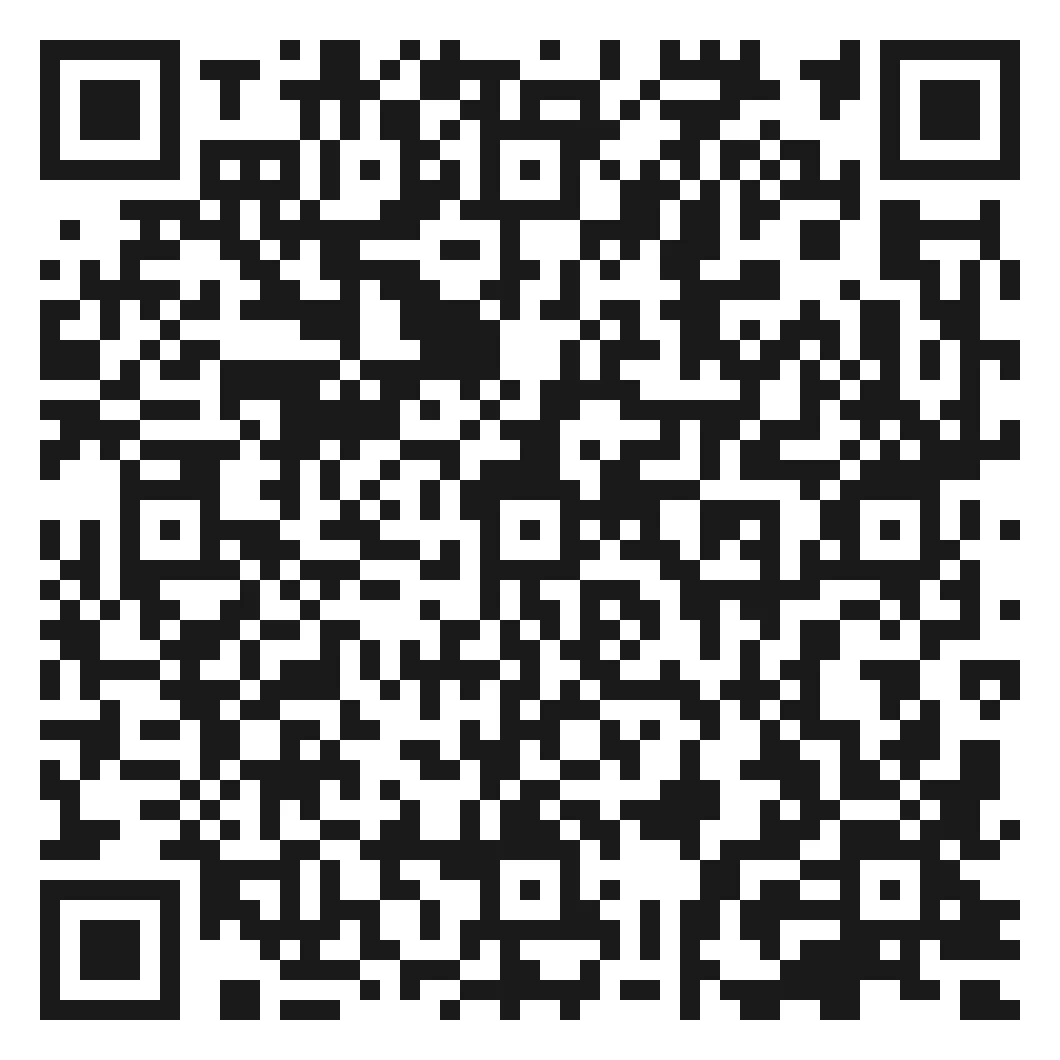
Google Play
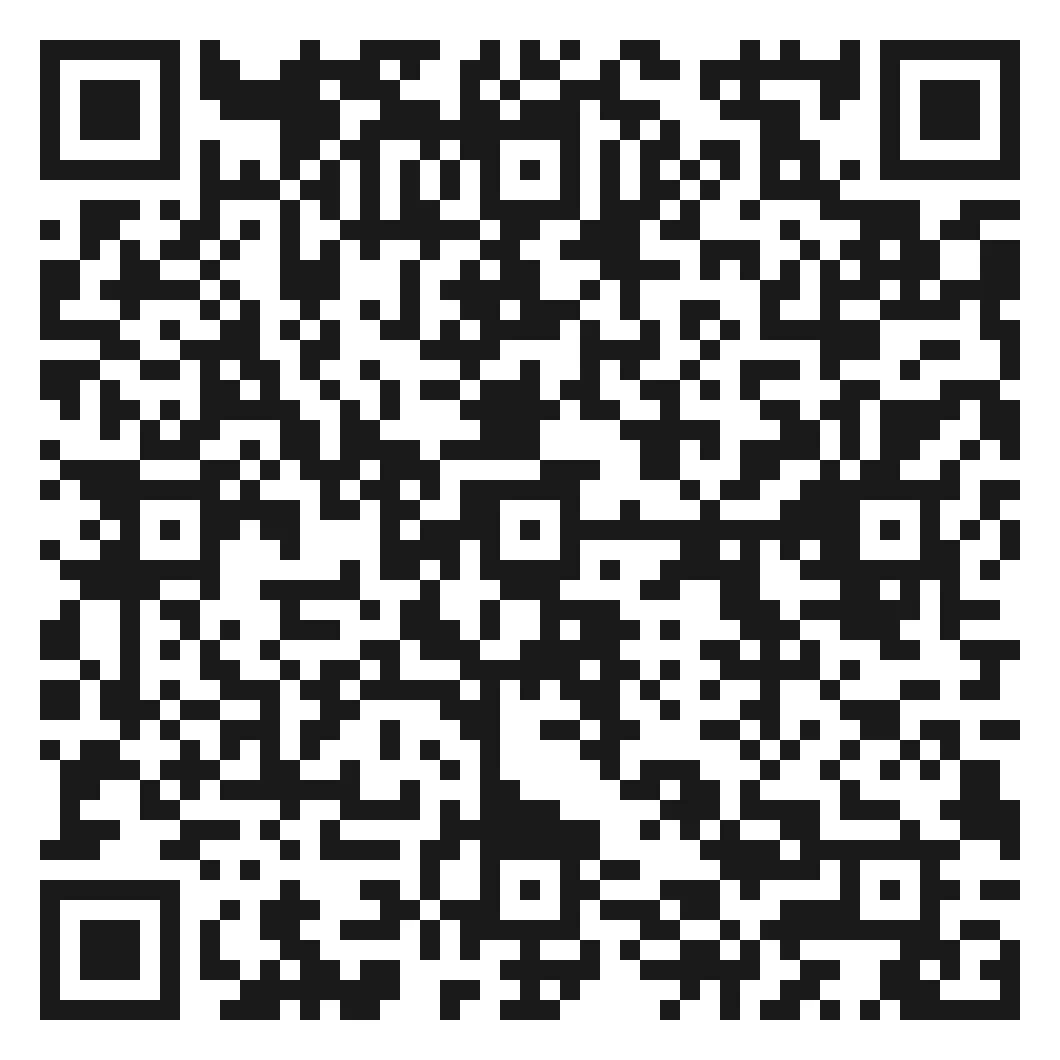
App Store
Step 1: Download the app
- On your phone, open the App Store (iPhone) or Google Play (Android).
- Search for Fire Connect, or scan the QR code above.
- Install the app.
Step 2: Sign in
- Open the app and choose Syncro Connect as your product. The app remembers the choice.
- Enter your company code, your email address and your password. These are the same details you use for Syncro Connect.
- Tap Sign in.
- Choose a five-digit passcode when asked. From then on the app opens with the passcode, or with your fingerprint or face if you allow it, so it is ready in about a second during a drill.
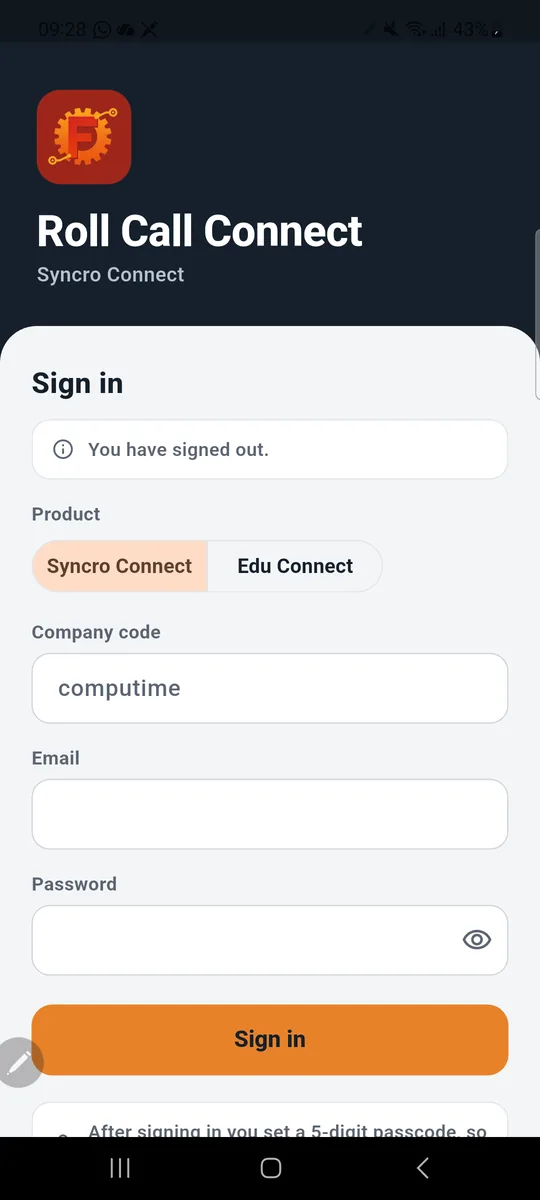
You stay signed in. If you ever need to sign in afresh, tap Use full login on the passcode screen.
If you do not have permission to use Fire Connect, the login will not work. To grant someone access, see setting up fire marshals above.
3 The standby screen
When no roll call is running, the app shows the live list of who is on site right now. It refreshes itself every thirty seconds.
- Header: your company, the site filter in use, and Updated with the time of the last refresh.
- On site: everyone with a clock-in or a sign-in today and no clock-out.
- Visitors: visitors signed in on the visitor tablet and not yet signed out. They appear in the list with a Visitor tag and their host.
- To check: people the system cannot be sure about, for example someone who signed in on the tablet yesterday and never signed out. Each shows the reason under their name.
- Search and Filter: find a name, or narrow the list by site, assembly point, department or job title.
- Everyone and To check: switch between the whole list and the people who need a manual check.
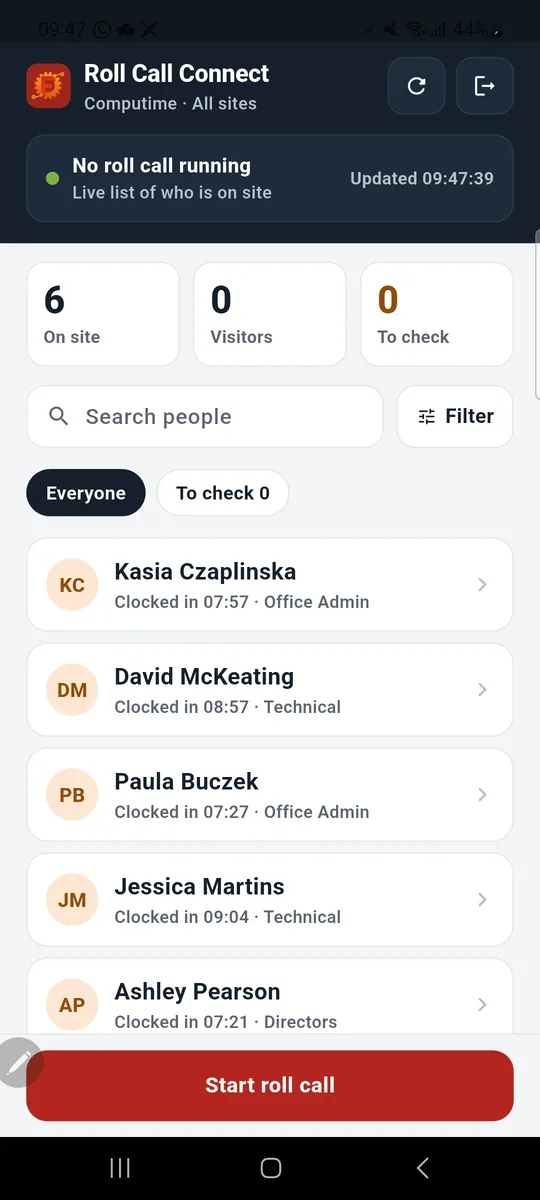
Tap any name to see their details. Tap Start roll call when the alarm sounds.
4 Starting a roll call and marking people safe
Start the roll call
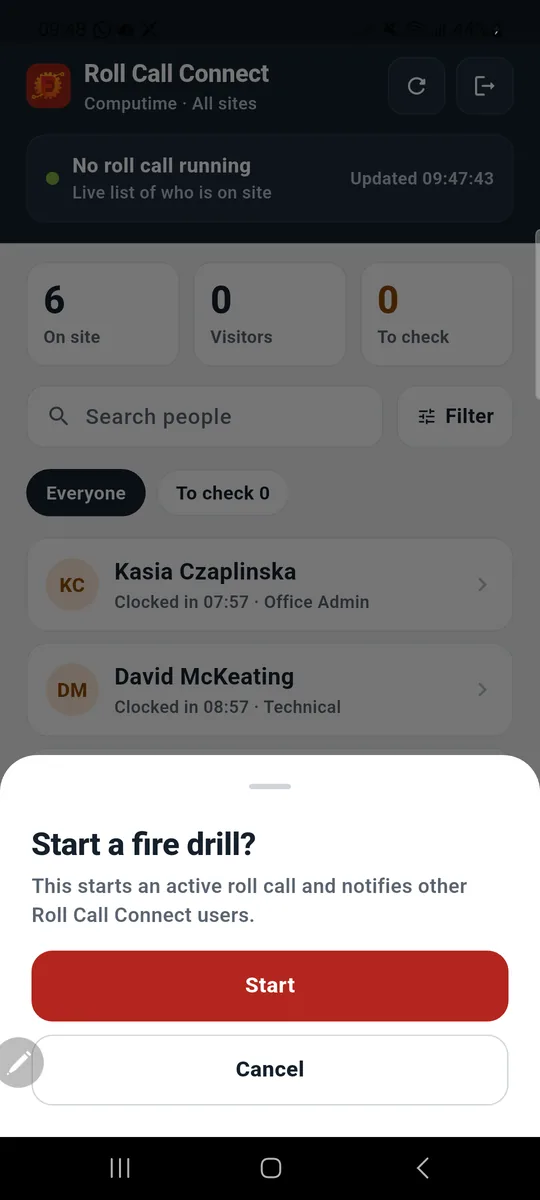
- Tap Start roll call.
- Tap Start on the confirmation. The confirmation is there because starting a roll call tells every other marshal.
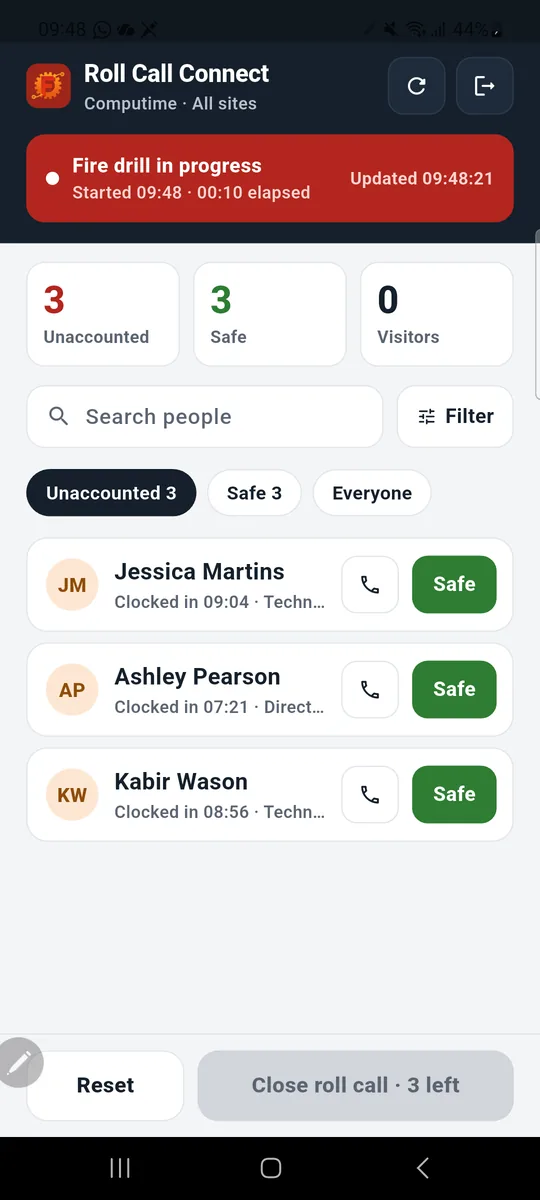
The header turns red and shows Fire drill in progress, the start time and a running clock. The three counts change to Unaccounted, Safe and Visitors, and the list opens on the unaccounted people. Every marshal who is signed in sees the same roll call on their own phone, so only one marshal needs to start it.
Mark people safe
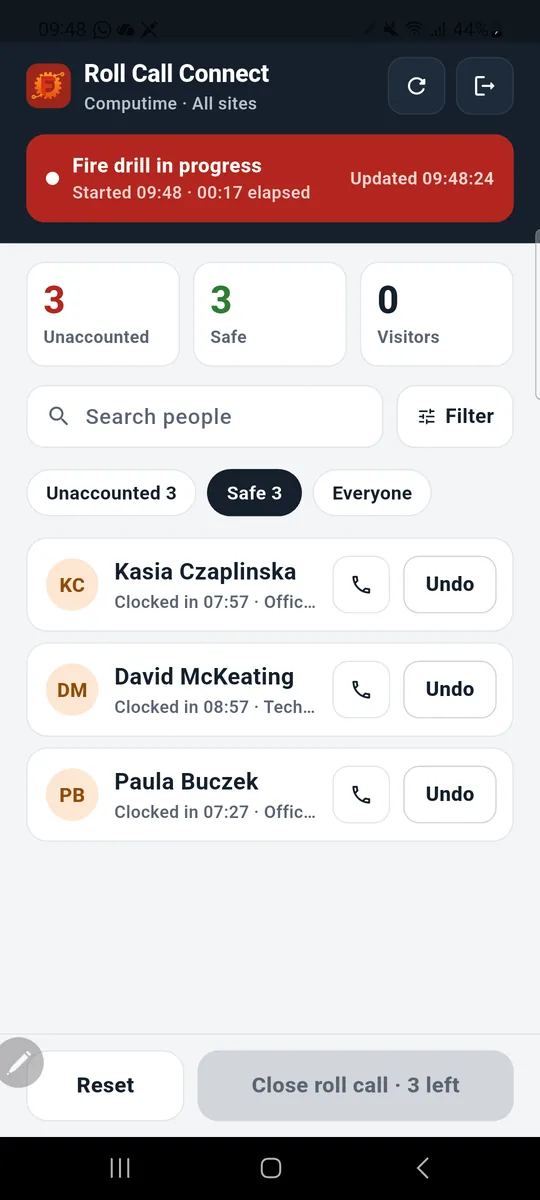
- Tap Safe beside a person as they reach the assembly point. They move to the Safe list on every marshal’s phone and the Unaccounted count goes down.
- Tap the phone icon to call someone who has not arrived. It uses the mobile number on their record.
- Tapped the wrong person? Open the Safe list and tap Undo.
- Use Search to find a name in a long list, or Everyone to see the whole roll call at once.
Each tap is saved straight away. The Close button at the bottom reads Saving checks for a moment while that happens, then shows how many people are left.
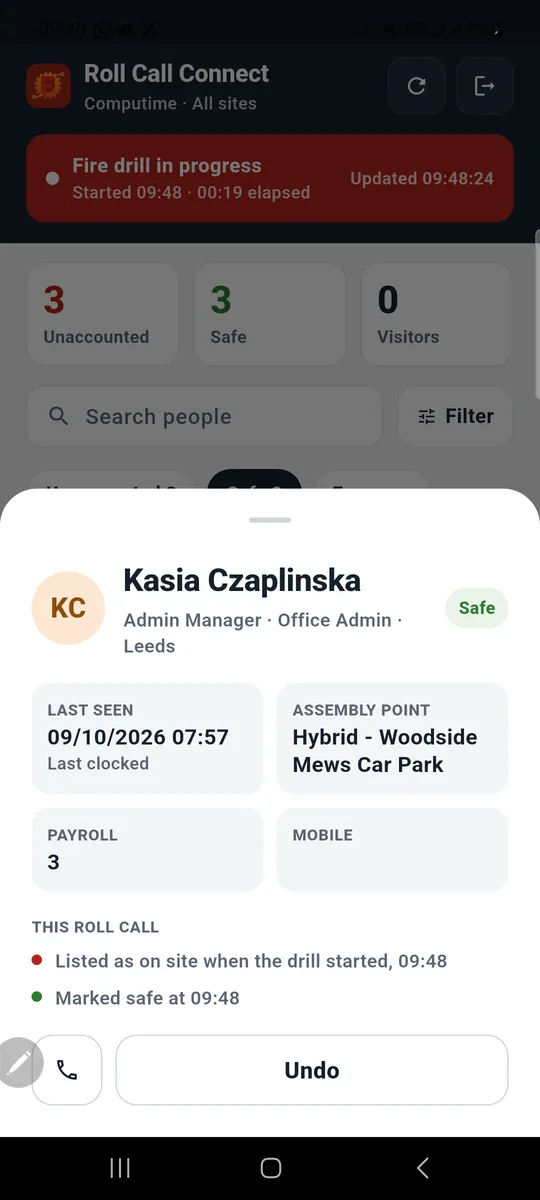
A person’s details
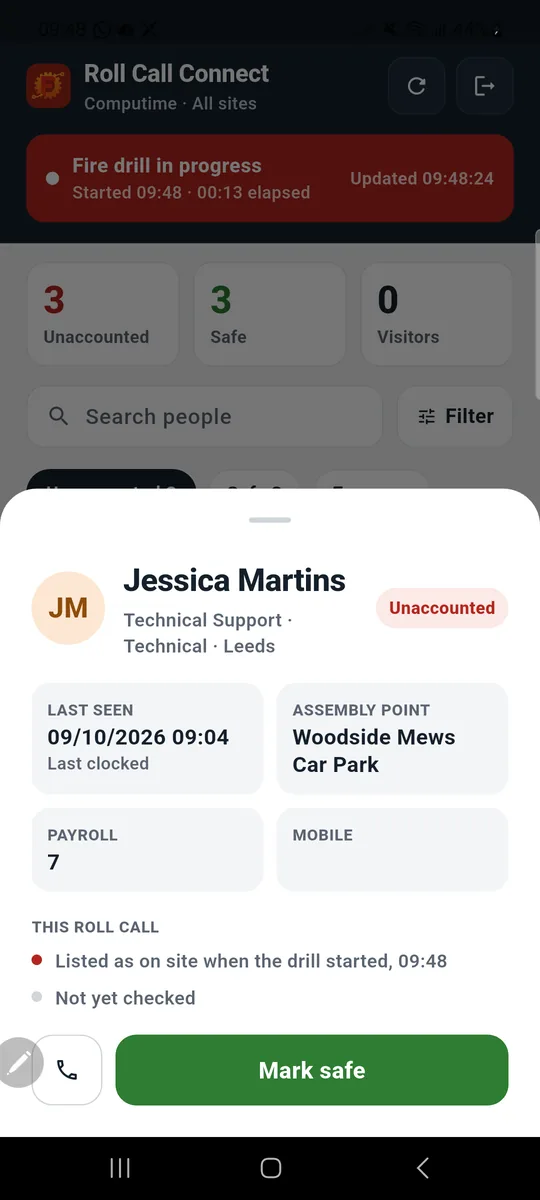
Tap a name, on standby or during a roll call, to open their details.
- Status: Unaccounted or Safe during a roll call, On site on standby.
- Last seen: the last clocking or sign-in and where it came from.
- Assembly point: where they should be.
- Mobile: with a Call button beside it.
- This roll call: when they were listed and when they were marked safe.
Check in person
Some people show an amber Check in person box with a reason, for example signed in on the visitor tablet yesterday and never signed out. The system is telling you it cannot prove whether they are on site today. Look for them rather than assume, and mark them safe only when you have seen them.
5 Working with several marshals
When more than one marshal is working, each can filter the list to their own part of the site. Tap Filter, choose what applies and tap Apply.
- Assembly point: the marshal at the car park sees the car park.
- Site: on a larger estate, your own site only. The site name then shows in the header.
- Department or Job title: for a team-by-team check.
- Staff or Visitors: one or the other.
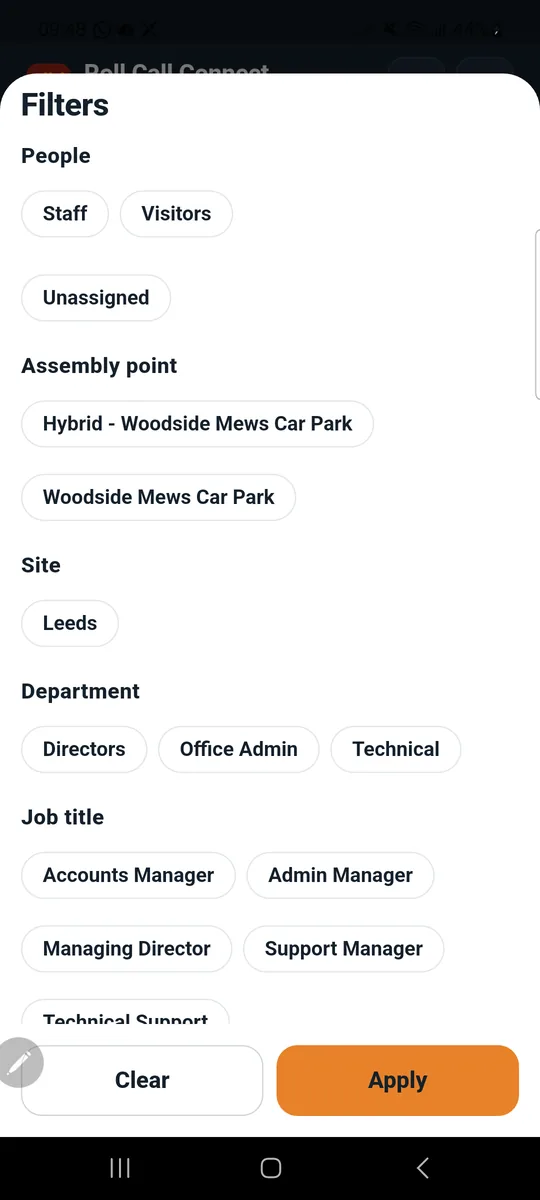
Filters only change what your phone shows. The three counts at the top always cover the whole roll call, and Close always needs everyone, not just the filtered list.
6 Closing the roll call
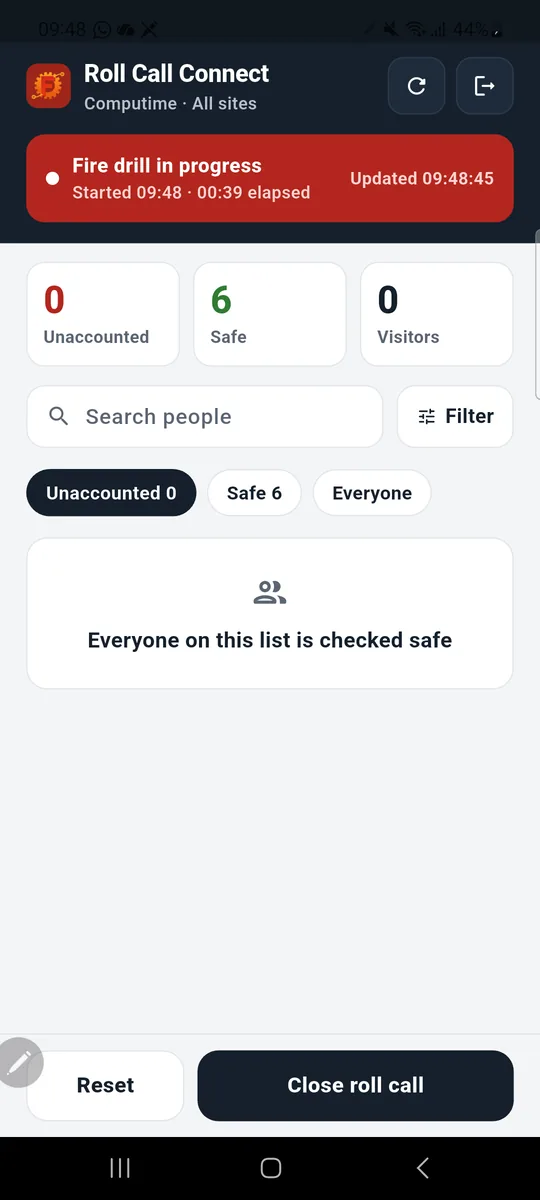
The Close roll call button stays grey and counts down (4 left, 3 left) until nobody is unaccounted. Then:
- Tap Close roll call.
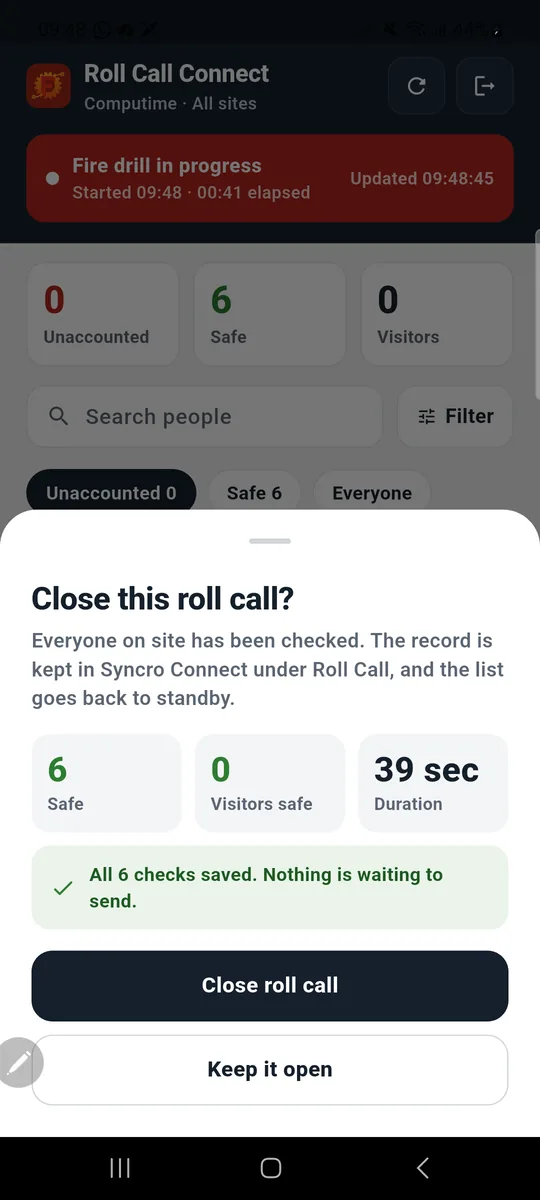
- Check the summary: how many are safe, how many visitors, and how long it took. The green line confirms every check has been saved.
- Tap Close roll call again to confirm, or Keep it open.
The record is kept in Syncro Connect and every phone goes back to standby.
Reset
Reset puts everyone in the current filters back to unaccounted. It asks first and tells you how many people it will affect. Use it to start again after a false alarm, or to clear marks made on standby before a real drill.
Forgot to close one? A roll call left open closes itself twelve hours after it started. It is recorded as Incomplete, with the number of people who were never checked, so it is visible rather than lost.
7 If the connection drops
The app keeps working with what it has and tells you plainly what is happening.
- The list stays on screen. The header shows Not updated since with a time and a Retry button, so you know how old the list is.
- A Safe tap that cannot be saved is undone on screen with a message, so nobody is shown as safe who was not recorded. Tap again once the warning has gone.
- When the connection returns the list refreshes itself and the warning clears.
- Returning to the app from another app also refreshes it straight away.
- If the app takes more than a few seconds to load the list when it opens, it says so and offers Try again now.
Test the signal at your assembly point during a drill, before you need it for real.
8 Roll call records and reports
Everything a roll call records is kept in Syncro Connect, so you have a record of every drill and evacuation.
View your roll call history
- In Syncro Connect, click Roll Call on the left-hand menu.
- You will see a list of all your recorded roll calls.
What the Roll Call page shows
- When each roll call started, who started it and who ended it.
- How long it took, and its accuracy percentage.
- How many people were on the list, how many were marked safe and how many were outstanding.
- Any roll call the system closed after twelve hours, shown as Incomplete.
The roll call report
The report goes person by person: who was on the list, their status when it closed, and who marked them safe and when. Export it for your fire records.
Deleting a roll call
A manager can delete a closed roll call from the Roll Call page, for example one started by accident.
9 Troubleshooting
- Cannot sign in. Check the company code, and that the email is the one on your Syncro Connect account. If both are right, the account may not have fire roll call login switched on: ask a manager to turn it on under People.
- Too many attempts. Five wrong passwords start a short wait, at most fifteen minutes. A correct sign-in clears it.
- Someone is missing from the list. They have no clock-in or sign-in today, or they clocked out. Ask them to clock in, and they appear on the next refresh.
- Someone is still listed who has gone home. They did not clock out or sign out. They stay listed until they do, or until the day’s records are corrected in Syncro Connect.
- Check in person. The system cannot prove whether they are on site today. The reason is under their name. Find them before marking them safe.
- People already marked safe before a roll call. Someone was marked safe on standby, with no roll call running. Tap Reset, then Start.
- Not updated since. The phone cannot reach the server. The list is still usable. Check the signal or Wi-Fi and tap Retry.
- Forgot the passcode. Tap Use full login and sign in with your password. You choose a new passcode afterwards.
Still stuck? Raise a support ticket inside Syncro Connect, or call us on 0113 350 9043.
Fire Connect version 1.1.0. Screens shown on Android; iPhone is the same. Not using it yet? See fire roll call.