Guides on this page
1 Understanding your dashboard ▼
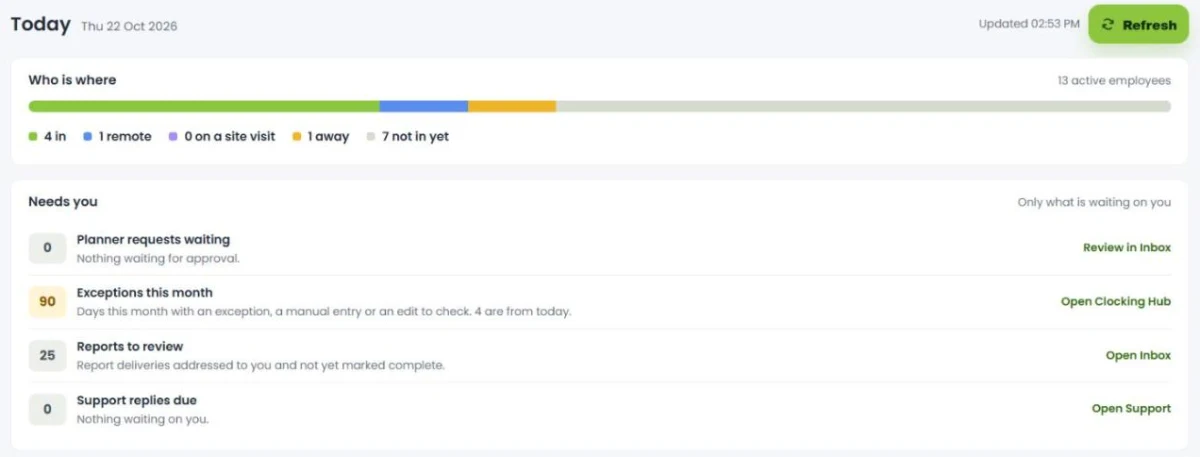
The dashboard is the first page you see when you log in. It gives you a quick overview of your day, so you can see at a glance who is around and what needs your attention.
What the dashboard shows
- Who is around: counts of how many people are on site, working remotely, and on planned absence.
- Reports in your inbox: how many reports are waiting for you to view.
- Clocking exceptions: how many clockings need attention in the Clocking Hub.
- Live planned absences: who is off today, and when they are due back.
The figures are live, so the dashboard updates as people clock in and out and as absences are booked. Use it as your starting point each day, then jump into the Clocking Hub or your inbox to action anything that needs it.
2 Using the attendance panel ▼
The attendance panel gives you a live overview of exactly who is in and who is out, how each person clocked in, and where from.
What you can see
- Who is on site: everyone currently clocked in, with a clock icon showing they used a clocking machine.
- Clock details: click a person to see which clock they used, the time they clocked in, and the schedule they are on.
- App clock-ins: people who clocked in on the mobile app show a mobile icon. Click More to see the exact location they clocked in from.
- Holidays: planned absences are shown alongside, so you can see who is off.
Filtering the view
- Use the filters to show only certain teams or departments.
- What you see also depends on your access. An administrator sees everyone, while a department manager only sees their own team.
The attendance panel is the quickest way to answer “who is in right now?”, useful for day-to-day management and as a live picture of on-site staff.
3 Finding your way around ▼
Syncro Connect uses the same layout on every screen. Once you know where things live, every other guide is easier to follow.
The top bar
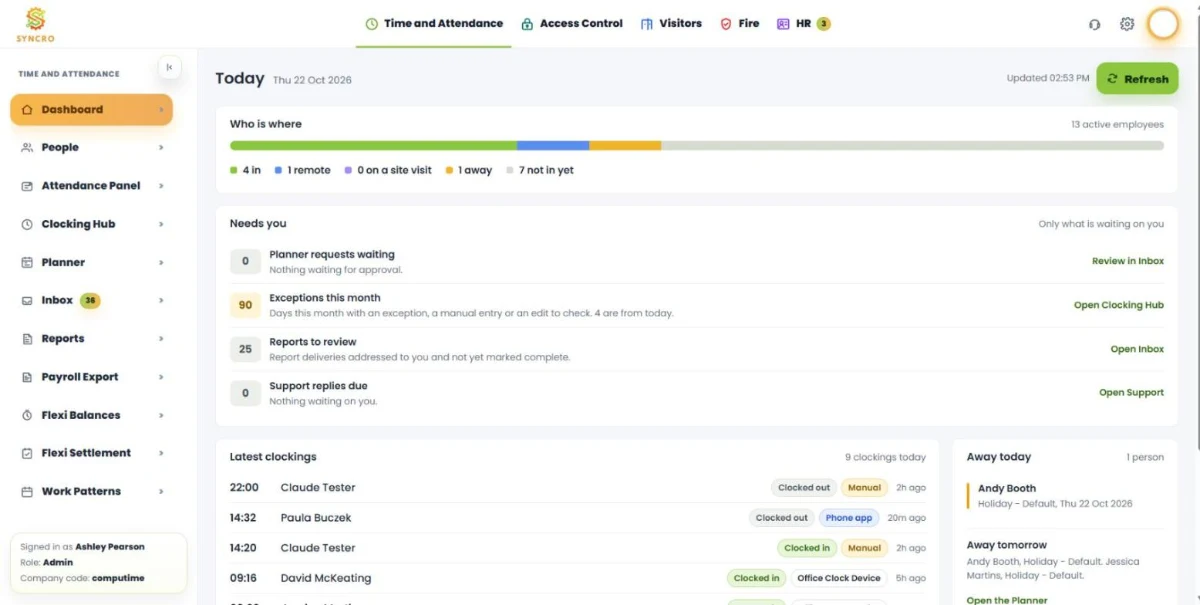
Along the top are the modules: Time and Attendance, Access Control, Visitors, Fire and HR. Click one to switch to it. A padlock means the module is not part of your licence, and a number on a module shows items waiting for you.
The left-hand menu
The menu changes with the module you are in. In Time and Attendance it lists:
- Dashboard, People, Attendance Panel, Clocking Hub, Planner, Inbox, Reports, Payroll Export and Work Patterns.
- Flexi Balances and Flexi Settlement, if your company uses flexi time.
The number next to Inbox shows how many items are waiting. The arrow at the top of the menu collapses it to give you more room. At the bottom you can see who is signed in, their role and your company code, which is useful to have to hand when you contact support.
The top-right icons
- Headset: opens Support.
- Cog: opens Settings.
- Your photo: opens the user menu, with Admin Area and Log off.
Panels that slide in
Most editing happens in a panel that slides in from the right, for example when you open an employee or a shift. Tabs along the top of the panel split the details into sections, and the save button is at the bottom.
Settings
Click the cog to open Settings. There is a card for each module: Syncro (holidays, planner codes, filters, devices and the clocking apps), Access Control, Visitors, Fire and HR. Each card shows Setup complete or Requires attention, so you can see at a glance if anything still needs setting up.
Clocking rules, such as grace periods and the maximum hours rule, are not in Settings. You will find them in Work Patterns, under Global settings.